Part 2: nmap dissected — don't blow your cover before you've even started
What your scan actually does at the wire level, and why the default flags aren't as stealthy as they sound.
In Part 1, we covered what nmap is and why it is widely used, then left off at the tradeoffs in depth and stealth. Part 2 goes into what nmap does at the wire level: how it determines if a target is alive, how packets reach the target, and how the scan works depending on your privileges.
Once you understand what nmap is actually doing under the hood, you’re not just better at using it. You start to recognize when a different tool or technique is the better call. Keep this in mind as we go deep because this gets technical.
Before the scan: what nmap needs to figure out first
The previous section showed us the cost of careless scan configurations. But if you only learn which flags trigger fewer alerts, you’re still just memorizing.
Nmap is a tool that relies on TCP/UDP behaviors, which in general are standardized, but how a target responds depends on two things:
- Its own TCP/IP stack implementation — the same scan technique can return useful results on Linux but misleading ones on Windows, because each OS handles packets differently.
- How the network handles your packets in transit — topology, routing, and everything sitting between you and the target shapes the response you get back.
All these factors go deeper than the TCP/UDP layer, and definitely beyond nmap. That is why knowing the topology and how ARP works allows a practitioner to understand the why behind “host seems down” or ports showing as filtered when they shouldn’t be. And perhaps, allows them to find an alternative to just spray-and-pray using different nmap flags.
To keep things simple, I distinguished an nmap scan into two big pictures: one scans a target at a machine within the same subnet, and the other scans a target in a different subnet.
Scenario 1: Target on the same subnet
Both machines sit on the same subnet (10.0.1.0/24). The scanner (10.0.1.10) and the target (10.0.1.25) share the same local network, meaning they can communicate directly without going through a router.
What does /24 mean?
An IP address like 10.0.1.10 is made up of two parts: the network portion and the host portion. CIDR notation (the /24) tells you where the split is. The 24 means the first 24 bits are the network (10.0.1), and the remaining 8 bits are the host (the .10). Any machine sharing the same 10.0.1 prefix is on the same local subnet, reachable without a gateway.
Change the number and the boundary shifts: /16 widens the network to cover 65,536 hosts, /30 shrinks it to just four. This is the number the OS checks to decide whether to ARP directly or route through a gateway.
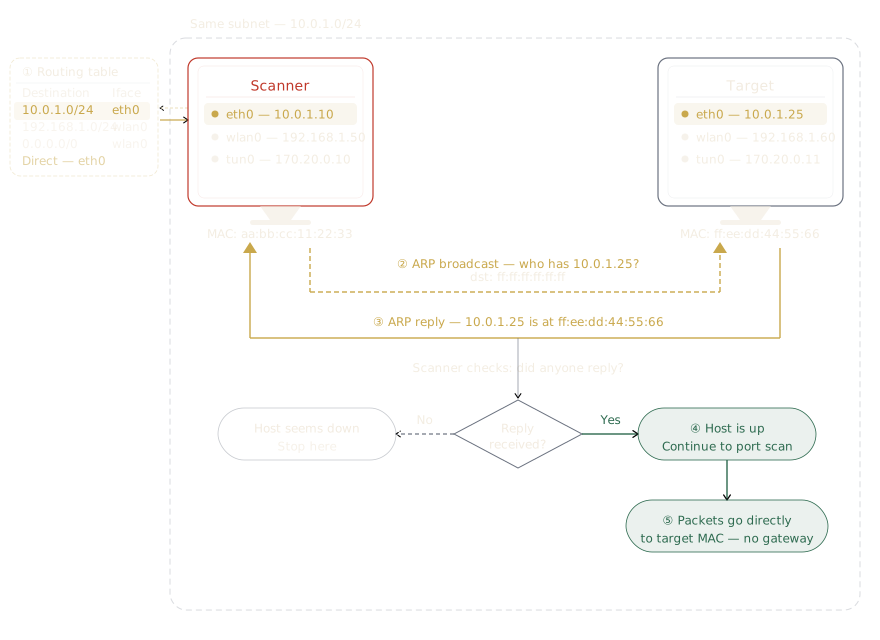
Step 1: Routing table query
Remember the gated community analogy we talked about in Part 1? The routing table is a directory at the front of our gated community. It tells you whether the house you’re looking for is in your neighborhood or requires going through the main gate (the gateway).
Before sending anything, the scanner’s OS checks this directory. Its eth0 interface is configured at 10.0.1.10/24, meaning anything in the range 10.0.1.0-10.0.1.255 is local. Since 10.0.1.25 falls within that range, no gateway is needed, and it can ARP directly.
Step 2: ARP broadcast to check liveness
With the information that the scanner can directly do an ARP ping in the local network, it can send a broadcast to all devices (ff:ff:ff:ff:ff:ff) under the local network to ask: “who has 10.0.1.25?”
What is ARP and why is it used?
If the IP address is the neighborhood and house number, the MAC address is the face of the person living there. ARP (Address Resolution Protocol) is how you match the address to the face, mapping IP addresses to MAC addresses.
Networking is layered. Layer 2 handles local hardware addressing using MAC and frames; Layer 3 handles IP routing using packets. ARP works at Layer 2, which is why it sends frames instead of packets, and can only operate within a local network.
This also means standard IP-level firewalls like iptables can’t block ARP since they filter at layer 3 and above. (ARP can still be filtered at layer 2 with tools like arptables or switch-level Dynamic ARP Inspection, but it’s uncommon on end hosts.)
Step 3: ARP reply
If the target is up, it responds directly with its MAC address. Nmap now knows the host is alive and where to send the port scan packets. If no reply is received, nmap concludes “host seems down” and stops here.
Step 4: Port scan
With the necessary information completed: destination IP, MAC, and port(s), the scanner can now construct and send packets to determine each port’s status.
In this step, the port scan packet is sent directly to the target’s MAC address (ff:ee:dd:44:55:66), never involving the gateway. And because the gateway is never involved, your scan never leaves the local network segment, meaning no routers, firewalls, or IDS (Intrusion Detection System) between subnets get to see it, making the scan inherently stealthier. Keep this in mind when we look at scanning across subnets in the next section, where that’s no longer the case.
Scenario 2: Target on a different subnet
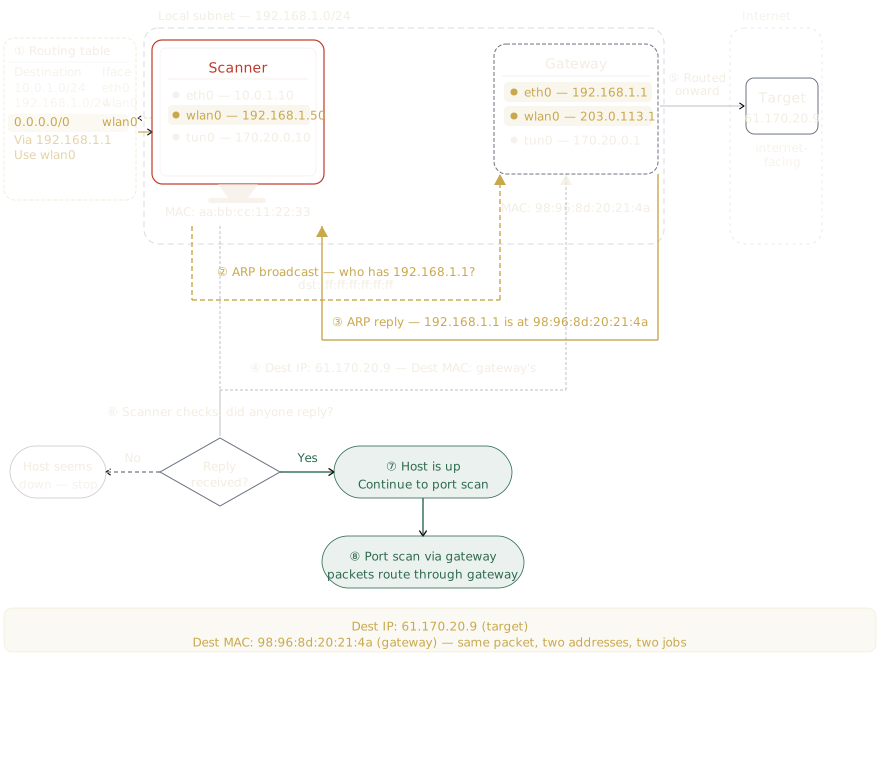
The scanner and the target sit on different subnets, and they need to communicate through a gateway. Unlike Scenario 1, the ARP reply here only tells us the gateway is alive, so we need a separate probe to confirm the target is up.
Step 1: Routing table query
The routing table plays the same role in telling the scanner how to reach the target, but this time the result is different. It tells the scanner that 61.170.20.9 is not on any local subnet, so it must be routed through the gateway (192.168.1.1) via the wlan0 interface.
Step 2: ARP broadcast for gateway
The scanner now relies on the gateway to forward its packet to the target. So instead of directly broadcasting for the target, it broadcasts for the gateway, as machines can only do ARP on a local subnet.
Step 3: ARP reply from gateway
If the gateway is up, it will receive the broadcast via the eth0 interface, and will respond directly to the scanner with its MAC address. If no reply is received, the packet can’t leave the local network at all, and nmap will report “host seems down”. However in this case, it may mean the gateway itself is unreachable, not necessarily that the target is offline.
Step 4: Scanner sends packet to gateway
The scanner can now construct a host discovery probe where the destination IP is the target’s IP (61.170.20.9) and the destination MAC is the gateway’s MAC (98:96:8d:20:21:4a). The MAC gets the packet to the gateway’s front door. The destination IP is what the gateway reads to decide where to send it next.
Step 5: Gateway routes packets to the target
When the packet arrives at the gateway, it strips the Ethernet frame (which contains the MAC addresses) and reads the IP header inside, where it sees the destination IP 61.170.20.9. The gateway then checks its own routing table, different from the scanner’s, and forwards the packet out through its wlan0 interface onto the target.
Step 6: Host discovery complete, port scan begins
If the target responds, nmap confirms the host is up and begins scanning ports. Every scan packet from here follows the same path: through the gateway and past anything sitting in between, including firewalls and IDS if present, which is why cross-subnet scans are inherently more exposed than local ones.
Host is up. But does it matter if I’m root or not?
There are two nmap scan flags that I would like to distinguish here, the -sS and -sT flags. Both conduct a TCP port scan, but one requires root privilege while the other doesn’t.
Quick TCP refresher: a connection opens with a three-way handshake (SYN from the client, SYN-ACK back from the server, ACK to confirm). A RST kills the connection abruptly. Both scans rely on this exchange; they just engage with it differently.
Let’s compare the two workflows before we point out the differences.
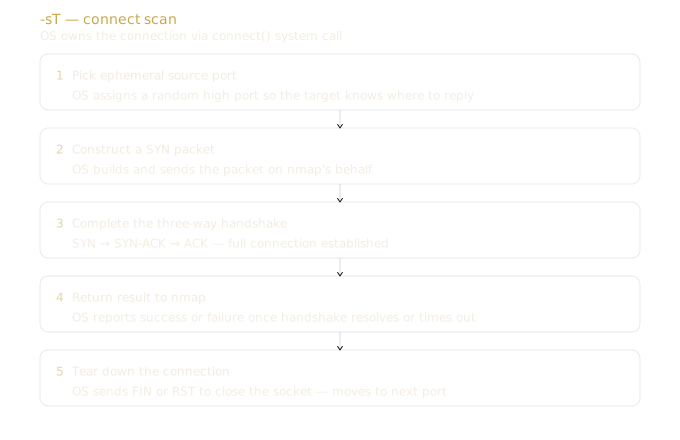
-sT — uses the OS’s connect() system call. Every step below is kernel work, not nmap’s.
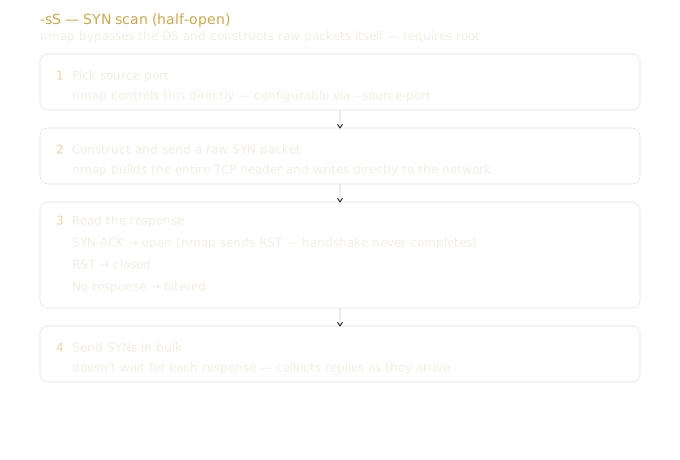
-sS — opens a raw socket and drives the scan itself, fully owning the connection.
The differences between these two workflows come down to three practical axes:
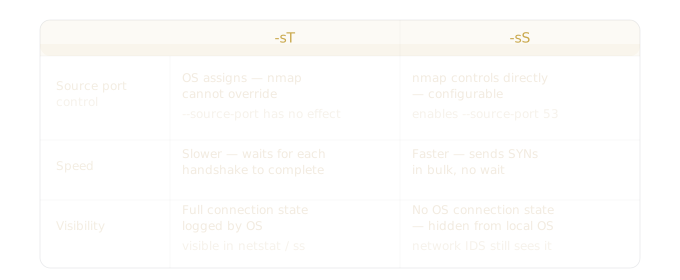
With the table above giving the shape of the differences, a few mechanical nuances are worth surfacing:
Source port. Because -sS builds the entire TCP header, it can set any source port. Techniques like --source-port 53 disguise scan traffic as DNS, but only against stateless ACLs. Modern stateful firewalls track connection state and won’t be fooled.
Speed. -sS sends SYNs in bulk via raw sockets, collecting responses asynchronously. -sT blocks on each connect() handshake to resolve or time out before moving on.
Visibility. -sT’s connection entries persist in the OS table after the socket closes, giving monitoring tools time to see them. -sS bypasses this entirely, which is why it needs root for raw sockets. But hiding from the OS isn’t hiding from the network: modern IDS like Snort, Suricata, and Zeek flag half-open patterns easily.
That said, -sT isn’t without its uses. It’s the only option without root, and because it completes the full handshake, it can produce more accurate results against targets behind load balancers or proxies. Some IDS also flag incomplete handshakes as scan signatures, making a full connect() look less suspicious in certain environments.
The two questions I now ask before every scan
What sits between me and the target? Same subnet: your traffic stays local. Different subnet: everything passes through the gateway and whatever’s monitoring it, including firewalls or IDS.
Am I root?
Root gives you options. Without it, you’re limited to -sT. With it, you can choose, and the right choice depends on your answer to question one.
And one thing I started doing: considering whether nmap is even the right tool. Netdiscover can listen passively for ARP traffic (with -p) to map hosts on a local subnet without sending probes. Hping3 lets you craft a single packet by hand, with full control over every header. The point isn’t to memorize tools, it’s that understanding the mechanics lets you pick the right one.
Nmap’s first packet is already a decision. Make it deliberately.