I Updated My LinkedIn. Two Days Later, Someone Impersonated My CEO.
Here's how phishing emails find you, and how to spot them before they do.
It’s been one month since I joined Cymetrics, and I don’t think I’ll forget how warm those first few weeks were. New joiners got welcome messages from the co-founders, people I already knew reached out to say hi, the team went out for a meal, and there was a proper newcomer celebration. Before I knew it, I was sitting in weekly syncs and had one-on-ones scheduled to talk through my growth and trajectory. The communication here is transparent in a way that’s rare. It genuinely feels open across levels.
It was after settling in that first week that I decided to make the transition public. On the weekend of March 7th, I updated my LinkedIn. No announcement, just editing my experience section. Job title, company name, start month. That’s it. Then I went to enjoy the rest of my weekend.
Monday morning, March 9th. I’m getting ready for work when a Gmail notification pops up on my phone. It’s from our company’s CEO.
Hi Michelle, When you have time, I would like to speak with you. Best regards,
I won’t pretend I wasn’t excited the moment I saw that. Before joining Cymetrics, I did my research on the organization and the people. A lot of them are people I genuinely look up to. So seeing our CEO’s name in my notifications meant something, especially knowing we share a background in Women in Tech.
The excitement lasted about a split second.
The email came to my personal Gmail, not my work address. There was no context for why she wanted to talk, no timeframe, no complete signature. Just “Best regards,” hanging at the end. The subject line was just “Michelle.” And if she needed something urgently, there were faster ways to reach me internally. Something was off.
I opened it and immediately saw the sender’s address: ochatbox267@gmail.com. Display name: our CEO. Actual sender: a Gmail throwaway.
That split second of doubt came from noticing four things:
| Red flag | What to look for | Real example |
|---|---|---|
| Sender address vs display name | Does the email address actually match who it claims to be? | ”Michelle Ip” but sent from ochatbox267@gmail.com |
| Wrong inbox | Did it arrive to a personal email when it should go to work? | Sent to Gmail, not my work Outlook |
| No context | Vague message with no specifics, no time, no reason? | ”I would like to speak with you” — no topic, no time proposed |
| Unexpected channel | Would this person normally reach you this way? | She could have just sent a Teams message |
Since it happened so quickly after I updated my LinkedIn, I decided to dig into it. The next section gets more technical as I’ll walk through what likely happened in the background and how different steps in the attack pipeline lead to the different results you see in a phishing email. At the end, I’ll cover how to spot them yourself.
Reading Between the Lines (and the Headers)
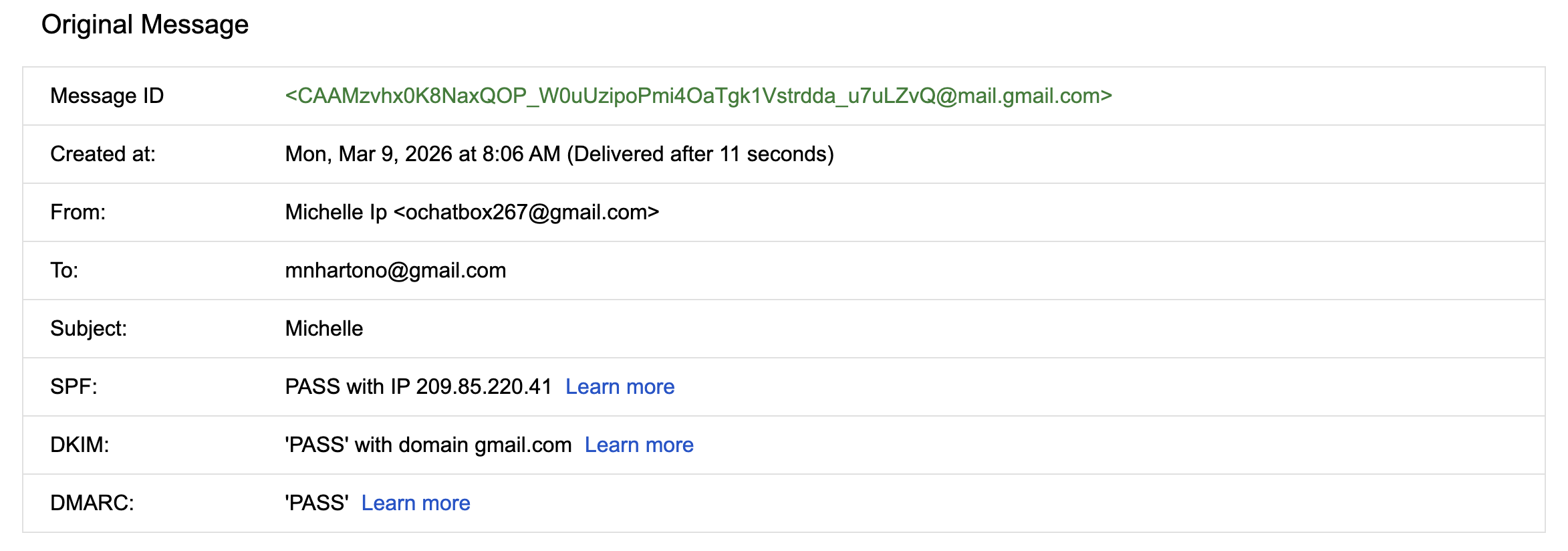
I work in security, so naturally I couldn’t just delete it and move on. I opened the original message and started poking around. The first thing I checked was whether the email had passed Gmail’s built-in security filters, the three checks designed to catch spoofed and fraudulent emails. Think of them as the security guards your inbox runs every incoming email through.
All three passed: SPF, DKIM, and DMARC.
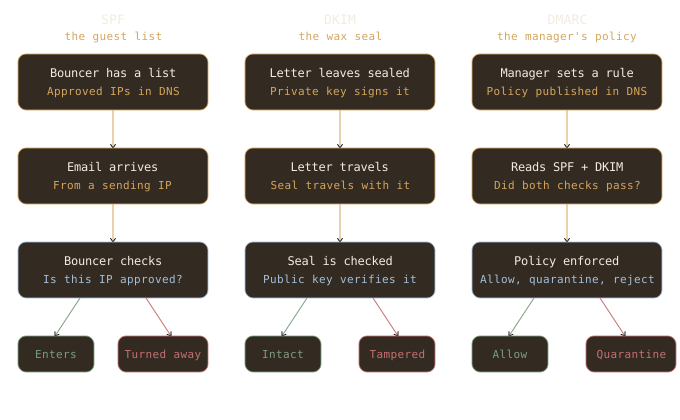
What are SPF, DKIM, and DMARC?
SPF, DKIM, and DMARC are the email security trio whose job is to guard your domain from spoofing, phishing, and scams.
- SPF (Sender Policy Framework): A DNS record listing every server address authorised to send email on your domain’s behalf.
- DKIM (DomainKeys Identified Mail): A digital signature attached to the email header to prove it wasn’t tampered with in transit.
- DMARC (Domain-based Message Authentication, Reporting & Conformance): Reads the SPF and DKIM results and enforces a policy: allow, quarantine, or reject.
Think of sending an email like delivering a package through a courier.
I then looked at the Received headers to trace the email’s path. The originating server was mail-sor-f41.google.com, one of Google’s own outbound mail servers. The email genuinely came from Google’s infrastructure.

So why did the scam mail land in my inbox at all?
Because ochatbox267@gmail.com is a real Gmail account, originating from a real Google server (SPF checks), with a real signature (DKIM checks), and Google’s policy allows it (DMARC checks).
The courier analogy has one honest gap: none of these three checks covers the display name. Anyone can set their Gmail display name to anything they want, and that part is completely unguarded.
To show you how a sloppier attack looks by comparison, here’s another email that landed in my spam folder.
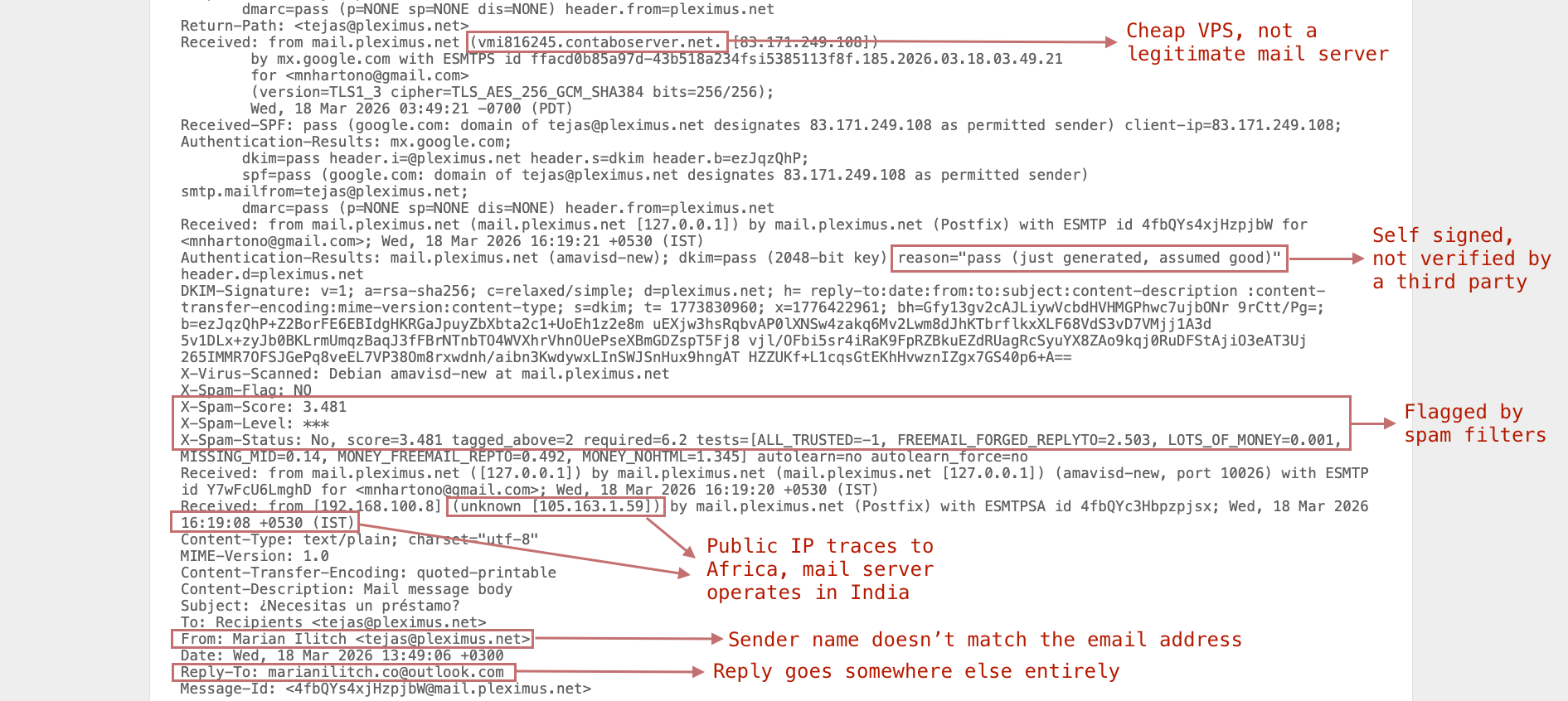
The spam filter caught this one. But notice what it took. More than five separate signals before anything raised a flag, and even then it wasn’t blocked, just sorted. Compare that to the CEO impersonation email: no suspicious links, no failed authentication, no obvious tells. Here’s the two side by side:
| Signal | My phishing email | Pleximus spam |
|---|---|---|
| Sending server | Google’s own servers | Cheap VPS (contaboserver.net) |
| SPF | Pass | Pass — but self-certified |
| DKIM | Pass — legitimate | Pass — “just generated, assumed good” |
| DMARC | Pass | Not present |
| Spam score | None flagged | 3.481 — forged reply-to, money keywords |
| Reply-to | Matches sender | Forged — different Outlook address |
| Sending IP | Google (legitimate) | Africa — mismatches server timezone |
| Verdict | Landed clean — nothing to catch | Sloppy — multiple tells |
How the Scraper Found Me
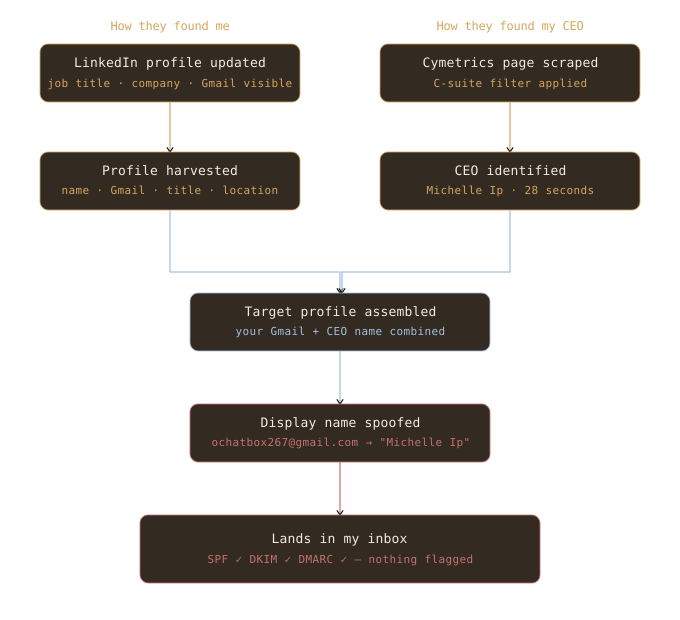
I mentioned earlier that it’s interesting how the email landed in my mailbox just two days after I updated my LinkedIn. For context, I hadn’t publicly shared my job transition before this, just told my friends and people who asked, so it’s reasonable to assume the bot got my information from LinkedIn.
Digging into this led me to play with what’s called a LinkedIn scraper bot. Scraper bots are widely used by sales, marketing, and recruiting teams for lead generation, market research, hiring pipelines, and talent analysis. They’re also, unfortunately, used for targeted social engineering attacks. Here’s the chain I think was used against me:
To demonstrate how each step works, I used a tool called Apify.
There are plenty of scrapers out there, free and paid, and you don’t need to be technically fluent to use them. With AI assistance, you can even build your own. Apify is a cloud-based platform for web scraping, data extraction, and browser automation. It runs tools they call actors, agents built to complete specific tasks, developed by a global community of developers. Features and pricing vary, so you can pick whatever fits your needs, or build your own.
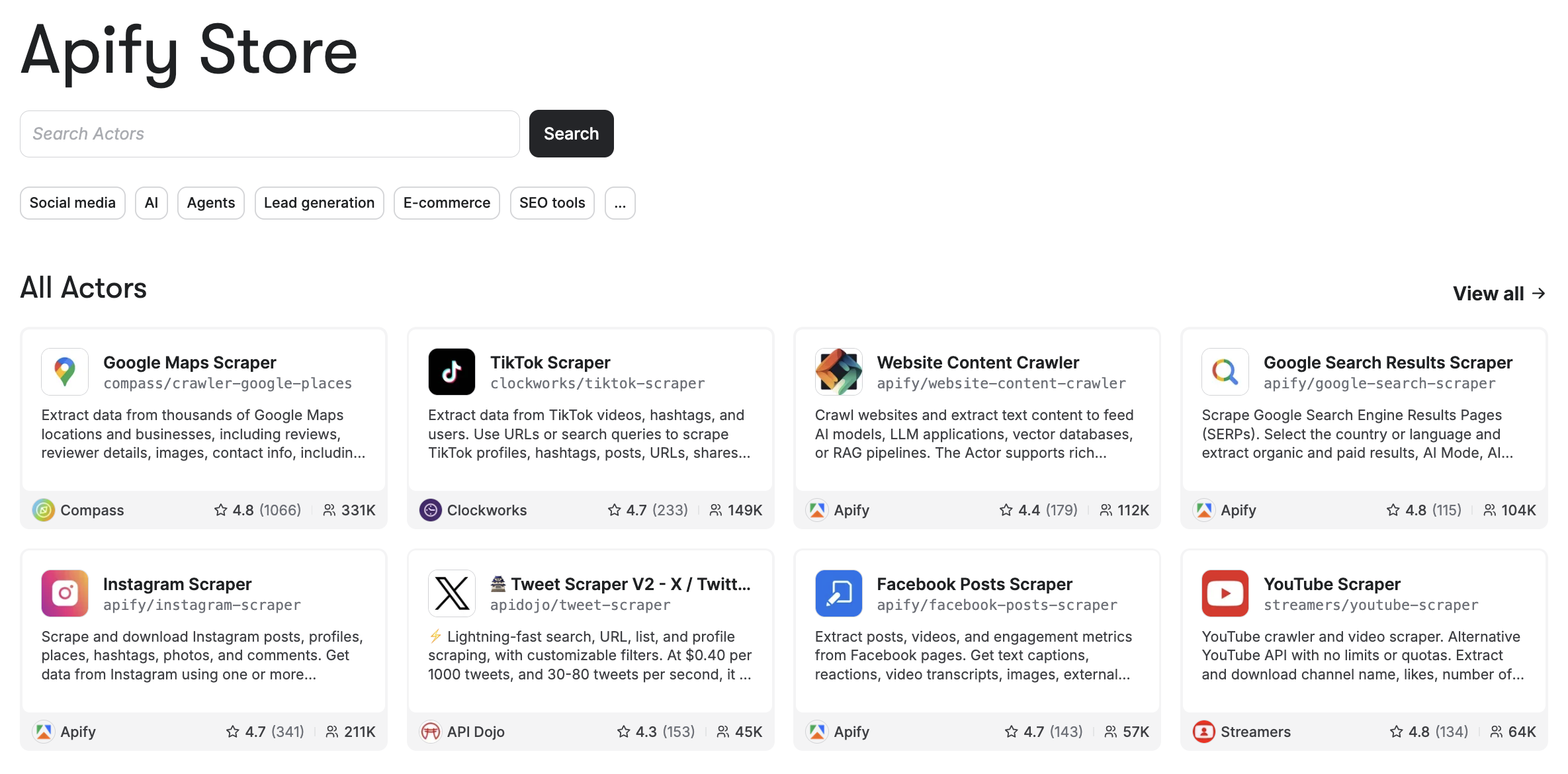
For LinkedIn alone, there were 1,751 actors available as of the date I wrote this (March 23). The two most relevant for this story: LinkedIn Profile Scraper and LinkedIn Company Employee Scraper.
Step 1: Finding the Target
Tool: LinkedIn Profile Scraper
The first actor handles victim identification. All it needs is your LinkedIn session cookie and the URLs of the profiles you want to scrape.
What are session cookies, and why are they required?
Session cookies are temporary tokens your browser stores to keep you logged in. They’re what lets you close a tab and come back without re-entering your password. The scraper needs one because it has to act as you. It logs into LinkedIn on your behalf, browses profiles the way a human would, and pulls the data. Without a valid session cookie, LinkedIn sees an anonymous request and blocks it.
This is also why you should never share yours. A session cookie is functionally equivalent to handing someone your password. Whoever has it can access your account until the session expires.
After pasting your cookies (a few clicks to export from your browser), you list the profiles you want to scrape, configure the user agent and wait duration, and decide whether you also want company profiles and email addresses. Then you hit start and wait.
It took me around 3 minutes to scrape 6 LinkedIn profiles, at a cost of US$0.032. The data it returned was alarmingly comprehensive. I ran it against my profile and five other well-known profiles and got back full names, employers, job titles, seniority, geolocation, email addresses, even phone numbers.
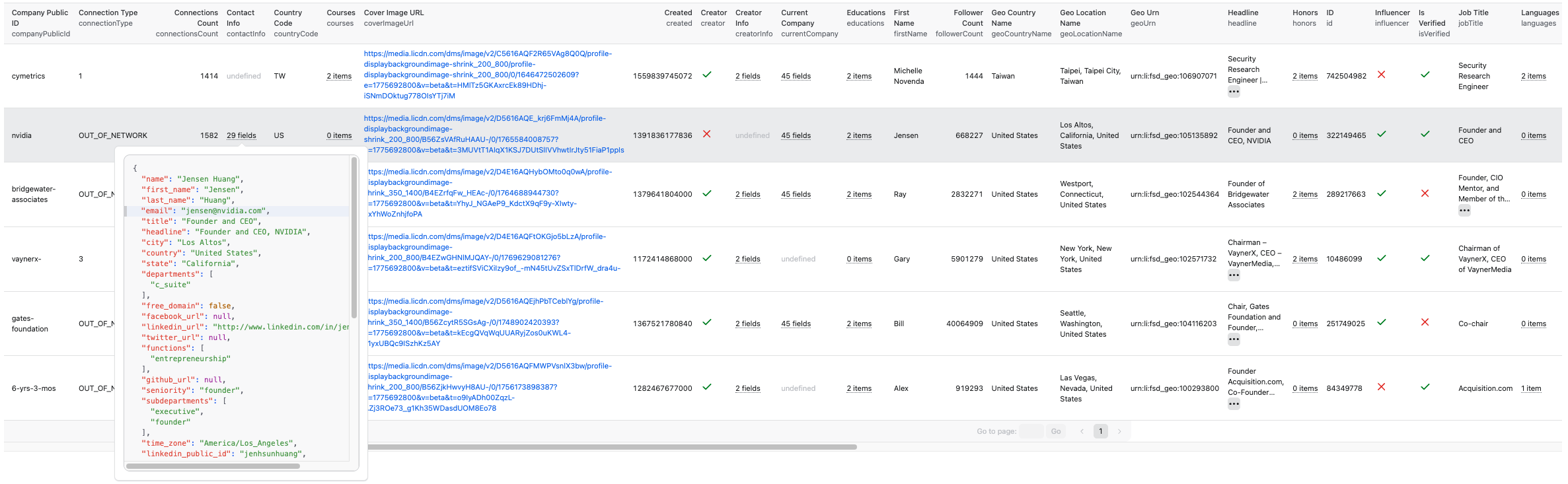
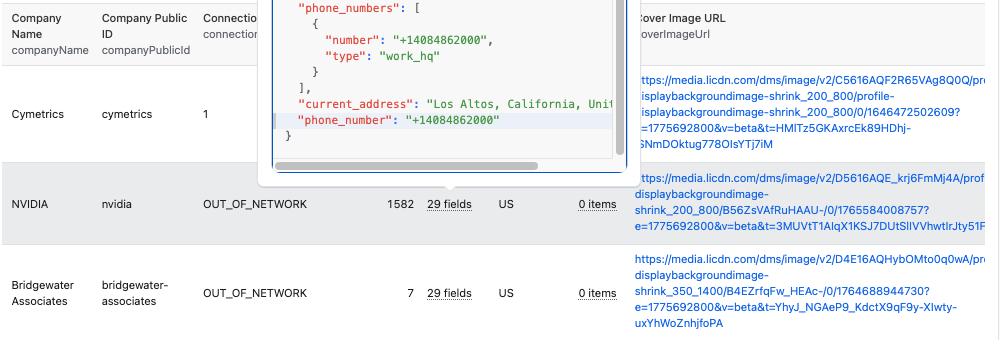
Please do not use this to spam-call your idols :D
Step 2: Finding Someone to Impersonate
Tool: LinkedIn Company Employee Scraper
Once you’ve identified potential victims, the next step is finding someone to impersonate. This actor scrapes a company’s LinkedIn page and returns a list of employees, filterable by position and seniority. I kept it simple: Co-founder and CEO only.
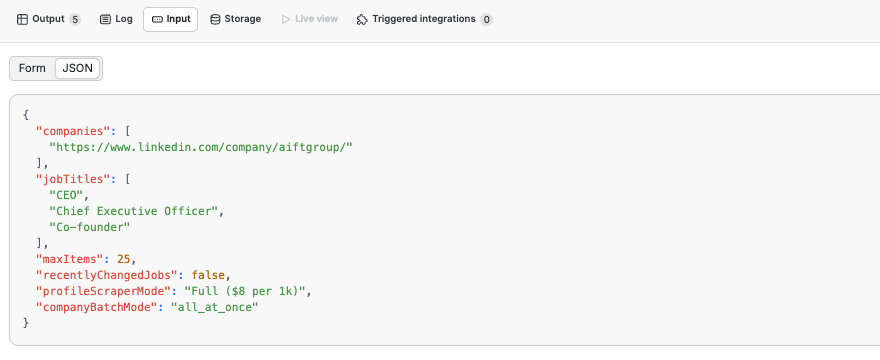
After about 30 seconds, it returned our organization’s leadership accurately and neatly.

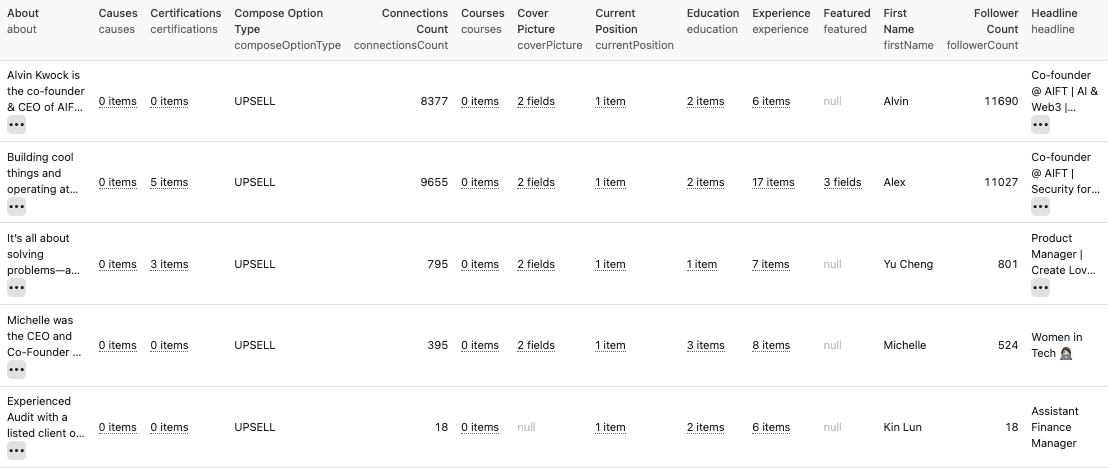
Michelle Ip’s name. The same one that showed up in my inbox. It only takes two tools, US$0.032, a few minutes, and a handful of public information. That’s all it took to build that email.
What to Take Away from This
Use more than one email account
From the story above, it was immediately obvious something was off because the email arrived at my personal address instead of my work one. I keep multiple accounts for different purposes: one public email for connecting with people, one for e-commerce and newsletters, and one I keep private for sensitive things like banking and tax. Separate inboxes make suspicious messages easier to spot.
Check the sender address, not just the display name
As we’ve seen, anyone can set their display name to anything they want. As long as the sending domain passes authentication and the email isn’t tampered with, there’s a real chance a phishing email lands in your inbox. If something feels off, check the actual sender address. You’ve got a checklist from reading this far — scroll back up to the comparison table. Microsoft also has a solid guide on spotting phishing emails.
Share information carefully, and keep track of what’s public
Living in a digital era makes oversharing easy. But that’s not an excuse. It’s a reason to be more deliberate about what you put out there.
The information I’m careful about falls into three categories:
- Physical: my whereabouts and travel plans
- Temporal: my schedule and when I’m unavailable
- Financial: which institutions I bank with
In the right context, shared with the right people, these are completely normal things to discuss. But putting them out publicly is different. Piece by piece, they give an attacker everything they need to sound convincing.
Take conferences. I post about them too. It’s part of building a presence and making connections. But there’s a difference between announcing you’ll be at an event versus broadcasting your hotel, your real-time location, and your full schedule. Honestly, if there’s someone specific you want to meet, a direct message works better anyway. Less noise, more signal, and you don’t end up coordinating with ten people at once.
Things I’d Tell a Friend
Build a regular audit habit
I clear my inbox every day and block anything suspicious on the spot. Once a month, I sit down with my financial records. It takes an hour or two, but it’s one of those habits that quietly pays for itself. And if you work AI tools into the workflow, it takes even less time than you’d think. Harvard Online put together a comprehensive checklist that’s worth bookmarking and actually running through.
Audit your credentials the same way
I used to be annoyed every time corporate IT reminded me to rotate my passwords every three months. The idea is simple: if your password was quietly leaked somewhere, rotating it limits how long it stays useful to whoever has it. But rotating regularly means constantly creating new ones, and keeping track of different passwords across different accounts can get overwhelming fast.
I personally love using Bitwarden. It keeps all your login credentials in one place, locked behind a master password, so you can have a different password for every account without the mental overhead of remembering them all. Yes, it’s all eggs in one basket. But reusing the same password everywhere means one breach unlocks everything. A strong master password and the habit of closing the app after use goes a long way.
One thing worth checking: my Bitwarden was set to lock “On restart,” meaning it stayed open all day as long as I didn’t reboot. Go into Settings and make sure your vault timeout is set to something sensible, like “On system sleep” or a short time interval. While you’re there, set “Automatically clear copied values from clipboard” to something short. 30 seconds is enough.
Phishing isn’t new. What caught me off guard wasn’t the attempt itself. It was how quickly it found me, and how smooth the whole pipeline is. The internet is full of bots running exactly what I described: patient, automated, and surprisingly cheap. The good news is that the tells are there, if you know where to look.
I hope this helps you find them. Thanks for reading, and stay sharp.